How to Protect Your WhatsApp Account When Using GB WhatsApp
Reduce avoidable account, device, and personal-data exposure when using an unofficial app.
Understand the Security Risks Before You Continue
Account takeover means someone else gains access to your WhatsApp account, for example through a stolen registration code or an unauthorized linked session. Device infection means harmful software may be operating on your phone. An official WhatsApp ban is a service restriction imposed by WhatsApp. These are three different problems and require different responses.
A ban message alone does not prove that your device contains malware, and an unusual permission request does not automatically mean someone has taken over your account. More than one problem can occur at once. Security settings reduce some exposure, but cannot make an unofficial client risk-free or prevent WhatsApp from enforcing its terms.
7 Practical Steps to Protect Your Account
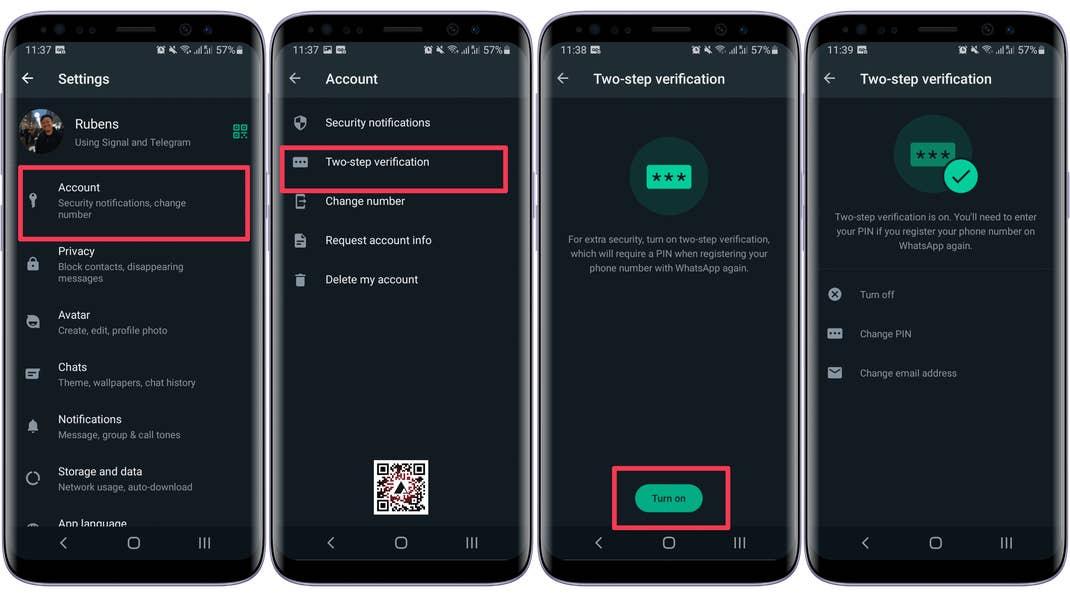
Enable WhatsApp Two-Step Verification
In a trusted official WhatsApp installation, open Settings, Account, and Two-step verification, then follow the prompts to enable a PIN. Menu labels can vary by version. Choose a PIN that is different from your phone unlock code and do not send it to anyone.
Add a recovery email if offered and protect that email account as well. Two-step verification adds a check to account registration; it does not disinfect a compromised phone or make an unofficial app trustworthy. If you suspect the device is infected, secure the account using a trusted device first.
Never Share Your Verification Code
Keep SMS and call verification codes private, even when a request appears to come from a friend, support agent, or familiar group member. Someone may be impersonating that person or using their compromised account. Enter a code only in the legitimate registration flow you initiated.
An unexpected code may mean another person entered your number. Do not forward it, approve an unfamiliar login, or follow a message asking you to scan a QR code to verify your identity. Protect your SIM with your carrier's available account safeguards and contact the carrier promptly if your number unexpectedly loses service.
Review Linked Devices Regularly
Open Linked devices in WhatsApp and review each device and its recent activity. Log out sessions you cannot identify or no longer use, including shared computers. A familiar device name alone is not enough if the access time does not match your activity.
Repeat this check after a lost phone, a suspicious login prompt, or unexpected messages sent from your account. Removing a linked session closes that session, but it does not establish that your phone is free from malware. Investigate account access and device security separately.
Avoid Sharing Sensitive Personal Information
Avoid sending passwords, recovery codes, banking credentials, or identity documents through an unofficial client. Even when a service uses encryption in transit, software on the device may have access to information before it is sent or after it is received.
Review what personal information you expose through your profile and conversations. Use a communication channel appropriate to sensitive work or financial information, and independently confirm unusual requests for money or personal details with the person involved. Deleting a message does not guarantee that every copy has disappeared.
Keep Android and Security Software Updated
Install Android security patches and Google Play system updates when available for your device. Keep Play Protect and reputable security tools enabled, and review their findings rather than routinely dismissing them to keep an APK working.
An operating-system update can address known device vulnerabilities, but it does not validate an unofficial APK. If an app demands that you turn off protections, stop and reassess the file. Avoid installing unknown security cleaners advertised in pop-ups as a solution.
Avoid Unverified APK Updates
Treat each replacement APK as a new file to assess. An update link in a chat, an in-app advertisement, or a higher version number does not prove that the replacement comes from the same distributor. Review its source, permissions, scan results, and signing information before proceeding.
Stop when Android reports an unexplained signature mismatch or security software identifies harmful behavior. Do not uninstall the existing app just to force an update. Use the APK safety checklist to review the file, while remembering that no checklist can guarantee safety.
Back Up Important Chats and Media
Before changing apps or making major account changes, identify the conversations and media you need to preserve. Use available supported backup options and check the backup date and location. Store important photos and documents separately in a protected location when possible.
Do not assume a backup created by an unofficial client will restore into official WhatsApp. Keep original files intact while checking compatibility. Avoid uploading chat databases to unknown recovery services, which can expose personal conversations without guaranteeing restoration.
What to Do If You Notice Suspicious Activity
If Your WhatsApp Account Is Accessed by Someone Else
Use a device you trust and follow recovery instructions in the official WhatsApp app or Help Center. If possible, review linked devices, end unfamiliar sessions, and secure your recovery email. If your phone number no longer receives service, contact your carrier to check for a SIM or account problem.
Tell relevant contacts through another trusted channel if someone has sent messages as you. Never pay a third-party recovery agent or share a verification code or PIN with them. If the app shows an official ban notice, use WhatsApp's available review process; account recovery steps are not a way to bypass a service restriction.
If You Suspect the APK Contains Malware
Stop using the suspected APK, especially for sensitive conversations or account recovery. Avoid entering new passwords on the affected phone. From a trusted device, secure accounts that may have been exposed and follow guidance from reputable security software or your device manufacturer.
Scan the phone and review installed apps and special access. Removing a suspected app may be appropriate, but preserve essential personal files carefully and avoid copying the suspicious installer elsewhere. Persistent symptoms may require professional help or a device reset after planning safe backups. Installing another APK update alone is not a reliable response to suspected malware.
If You Notice Unusual Permissions or App Behavior
Check Android Settings for the app's ordinary permissions and special access, such as accessibility, device administration, notification access, and displaying over other apps. Revoke access you cannot justify. Menu names differ by device, so consult the manufacturer's guidance if necessary.
Unexpected battery use, pop-ups, or background traffic are reasons to investigate, not proof of malware by themselves. If concerning behavior continues, stop using the app and inspect the device. Do not grant more permissions merely to dismiss a warning or unlock a promised security feature.
Should You Switch Back to Official WhatsApp?
Consider official WhatsApp when you need a recognized update channel, official recovery guidance, and fewer uncertainties about an unofficial client's code. Obtain it from a recognized official distribution source rather than an advertisement or an unsolicited download link.
Switching clients does not automatically clean an infected phone, recover an account, or reverse an official ban. Deal with those problems through their appropriate security or support channels. Official WhatsApp also requires sensible device protection, private verification codes, and regular linked-device checks.
How to Move Away From GB WhatsApp
First protect the data you can still access. Record your account number, locate available backups, and save essential media separately. Read the chat backup guide before deleting files or uninstalling anything. An exported conversation may be useful as a readable record but should not be assumed to be an importable chat backup.
Then review the current migration and restoration guidance for official WhatsApp. Backup formats, app variants, Android storage rules, and account details can affect compatibility. Complete migration is not guaranteed, and some conversations or attachments may not transfer.
Install the official app on a trusted device, follow its registration process, and restore only through a supported method if a compatible backup is available. Check important conversations and media before removing original backup copies. If malware is suspected, prioritize device safety rather than copying the unofficial installer or assuming a migration will remove the threat.