GB WhatsApp Backup Not Working
Fix stuck backups, missing files, permission blocks, and storage errors without deleting the chats you are trying to save.
Why Is GB WhatsApp Backup Not Working?
Backup failures usually come from fixable phone conditions: low storage, denied file access, corrupted partial files, or an app process killed mid-backup. Less often, the APK version you use changed backup paths or dropped a cloud option present in older builds.
Start with storage and permissions before reinstalling. Reinstall without a backup removes the very data you need to protect.
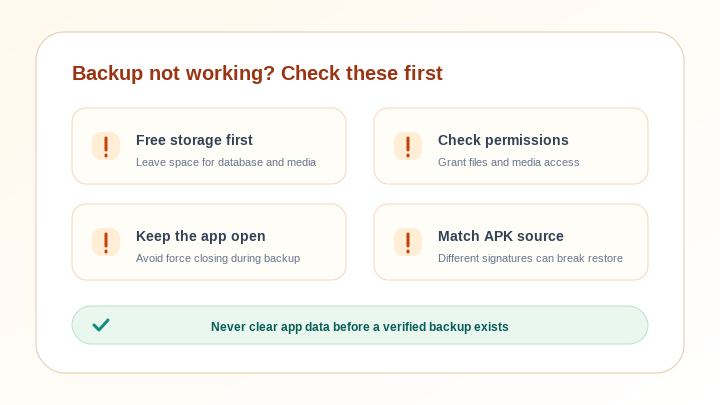
Check Available Storage Space
Open Settings → Storage and ensure several hundred megabytes free — more if you include media. Backups write temporary files that can fail silently when space runs out.
Clear cache from other apps if needed, but do not delete unknown .crypt database files or WhatsApp media folders you might restore later.
Review App Permissions
After granting permissions, run backup again from in-app settings. Paths are described in how to back up GB WhatsApp chats.
- Files and media / Storage — allow so GB WhatsApp can write backup files.
- On Android 13+, check photo and video permissions if media backup is enabled.
- Disable battery restrictions that kill GB WhatsApp during long backups.
Check the Backup Folder
Use GB WhatsApp’s backup screen for the authoritative path, then verify with a file manager that supports “All files access” if needed. On Android 11+, legacy WhatsApp folders may not appear without the right permission.
If a file exists but restore fails, the issue may be compatibility — see restore GB WhatsApp backup instead of deleting the file.
Fix Backup Stuck or Incomplete
- Keep the app in foreground on stable Wi-Fi or mobile data if cloud backup requires network.
- Plug in power for large media backups.
- Avoid force-stopping GB WhatsApp until progress finishes.
- If stuck above 90% for a long time, note progress, free space, and retry once before deeper fixes.
Check App Version Compatibility
Backups created on one mod signature may not restore after switching to an APK from another site. Update from a single trusted source, and keep the previous backup file until a new backup succeeds.
What to Do If No Backup File Is Created
When to Restore from an Earlier Backup
Use an older backup only when the newest file is corrupt and you accept losing messages after that backup date. Copy the old file to another folder before attempting restore so you do not overwrite the only copy.
Restoring replaces current chat data on the device — read restore steps carefully before proceeding.