How to Check If a GB WhatsApp APK Is Safe Before Installing
Review the source, file details, permissions, scan results, and Android warnings before installing.
Why You Should Check a GB WhatsApp APK First
GB WhatsApp is an unofficial modification distributed outside the official WhatsApp release process. Different websites can distribute different APKs under similar names. Before opening an installer, assess the specific file you downloaded rather than assuming every package behaves the same way.
A familiar website name, professional design, version number, or file size cannot prove that an APK is authentic or safe. The checks below can identify reasons to stop, but they cannot certify a download. If you cannot resolve a concern about its origin or security warnings, leave the file uninstalled.
6 Things to Check Before Installing
Check Where the APK Comes From
Start with the download page: does it explain who distributes the file, what changed in the release, and how to report a problem? Watch for buttons that open unrelated installers, advertising redirects that replace the download, or demands for credentials or payment to unlock an APK.
A recognizable domain provides context, not proof that its current file is trustworthy. Copied logos and links in messages can imitate established sites. If you cannot identify the download origin, stop instead of trying several anonymous mirrors until one installs.
Verify the Version and File Information
Record the stated version, package name, Android requirements, filename, and file size. Compare these with the release information for that exact download. Differences may reveal an incomplete or unexpected file, but matching details do not establish authenticity: those labels can be copied or changed.
If a trustworthy source supplies a SHA-256 checksum, compare it with your downloaded file. A match establishes that the bytes match that reference, not that the reference is safe. An unexplained signing-certificate mismatch during an update is a reason to stop. Do not uninstall your existing app to bypass it, especially before protecting local chats.
Review the App Permissions
Judge permissions by their purpose and timing. Camera access can support taking a photo, microphone access can support a voice message, and media access can support sending a saved image. A permission is not automatically malicious simply because it exposes sensitive information.
Ask whether you need the feature and whether narrower access is available. Depending on Android version, you may be able to allow selected photos or grant access only while using the app. Review Settings, Apps, the app name, and Permissions; device labels vary. Denying access may disable the associated feature.
Scan the APK With a Security Tool
Scan the exact APK before opening the installer. With VirusTotal, check that the report refers to the file hash you downloaded and review the analysis date. A report for another file or an old release does not describe your current download.
Zero detections means the participating engines did not identify a threat during that analysis. It does not mean VirusTotal has approved the APK or guaranteed its safety. Do not upload private chat backups, personal documents, or credentials to public scanning services.
Pay Attention to Android Security Warnings
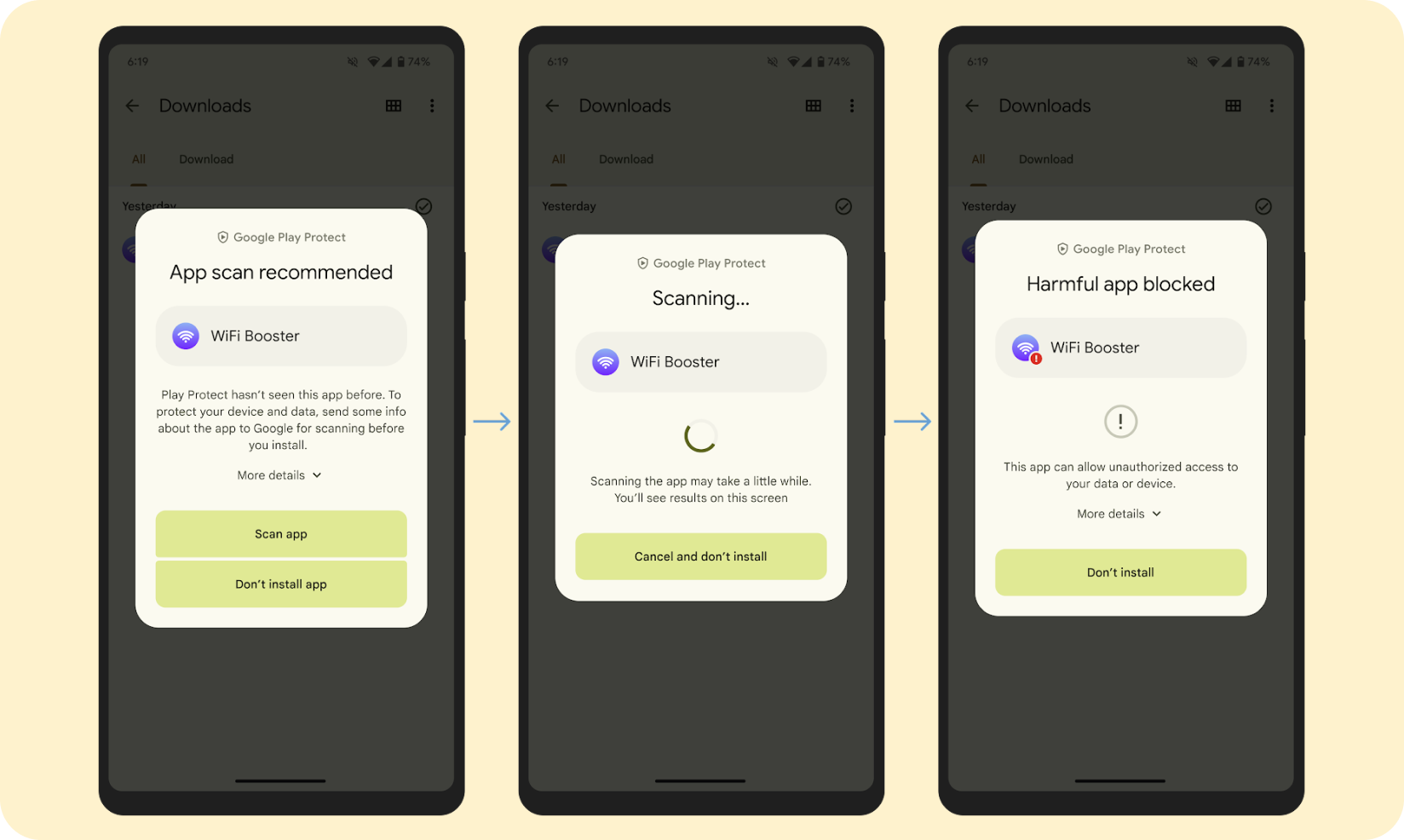
Read the exact message before acting. Android may report missing installation permission, incompatibility, or a specific harmful-app detection. These messages have different meanings; do not dismiss a malware warning as a routine consequence of sideloading.
If Play Protect or another security tool clearly identifies harmful behavior, stop installing the file. Keep scanning enabled and investigate using the security vendor's guidance. Instructions to disable every protection do not establish that a file is safe.
Check Whether the App Requests Unusual Access
Review special access separately from ordinary permissions. Accessibility services, device administration, notification access, installing other apps, and displaying over other apps can have broad effects. Each request needs a clear explanation tied to a feature you knowingly want.
Do not grant powerful access simply because setup refuses to continue. Stop if the APK asks you to approve unrelated installations, control other apps without a clear purpose, or enter credentials into unexpected screens. A download page's explanation is not an independent security assessment.
What Do APK Scan Results Actually Mean?
What a Clean Scan Can Tell You
A clean report is a limited observation: the engines involved did not flag the submitted sample at the time of analysis. It can help screen out known threats, especially when the hash matches and the report is recent, but it cannot establish who built the APK or how every feature handles data.
Treat zero detections as one piece of evidence alongside the source, signing certificate, permissions, and Android warnings. It is not a reason to ignore an unknown origin or an unexplained certificate change.
Why One or More Security Alerts Need Attention
Antivirus engines use different signatures, heuristics, reputation information, and update schedules. The same APK may receive different labels, or one engine may identify a threat before another. A generic suspicious-app label and a specific spyware detection are not identical findings.
False positives are possible, but a low detection count does not justify calling an alert harmless. Read the labels and consult the vendor's explanation. If security software clearly warns about malicious behavior, or you cannot resolve the concern, stop installation rather than relying on engines that did not detect it.
Why No Scan Can Guarantee an APK Is Safe
A scanner cannot reliably test every execution path, later server response, or future update. Some behavior may appear only after login, after a delay, or on particular devices. A report cannot guarantee responsible data collection or secure handling of an account.
Scanning also does not remove the separate risk of WhatsApp restricting accounts that use unsupported clients. No detections is not a promise of account access, reliable chat restoration, or official support.
Warning Signs You Should Not Ignore
- Unknown download origin, or redirects that replace the APK with unrelated installers.
- An unexplained signing-certificate mismatch when updating an existing installation.
- Requests to disable security scanning or approve unrelated installations.
- Permissions or special access that do not fit the stated feature.
- Explicit harmful-app warnings from security software that remain unresolved.
- A download page asking for your WhatsApp verification code or unrelated credentials.
Should You Install GB WhatsApp If You Are Unsure?
Stop if the source is unknown, the signing certificate is inconsistent, or security software clearly warns about the APK. Do not uninstall an existing app, clear its data, or weaken Android protections to force the replacement through. Protect important chats while deciding what to do.
Official WhatsApp from its recognized distribution channels is an alternative when you cannot establish enough confidence in an unofficial file. Read our GB WhatsApp safety guide for the wider risks and our APK virus check guide for scanning context. Neither this website nor a clean scan can guarantee safety.