How to Back Up GB WhatsApp Chats
Step-by-step instructions to save your GB WhatsApp conversations and media before you update, reinstall, or switch phones.
Why You Should Back Up GB WhatsApp Chats
Your chats live in a local database on the phone. If you uninstall GB WhatsApp, clear app data, or lose the device without a backup, those messages are often gone for good. Regular backups give you a recovery point before risky changes.
Updates and reinstalls are the most common reasons people lose history. A backup taken the same day gives you a recent snapshot you can restore if setup does not go as planned. Remember that chat text and media files are stored differently — backing up chats does not always copy every photo or video unless you include media in the backup options your build supports.
GB WhatsApp is a third-party mod, not an official Meta app. Backup behavior can differ from official WhatsApp and may change between APK versions.
What to Check Before Creating a Backup
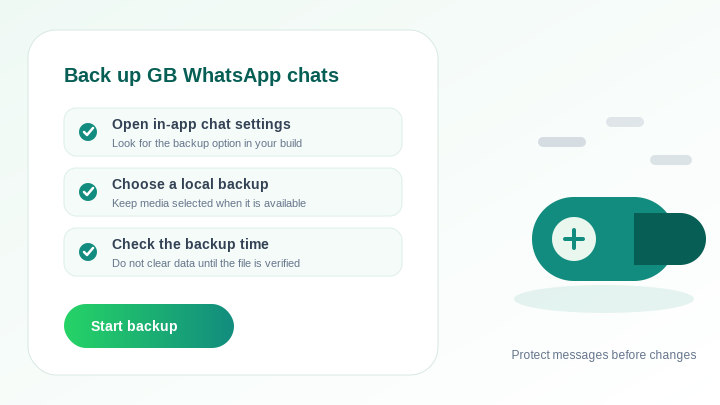
Do not uninstall or tap Clear data until you have verified that a backup finished and the file exists (or the app shows a recent backup time). If backup fails, see our GB WhatsApp backup troubleshooting guide before taking destructive steps.
- Free storage: leave extra space beyond the size of your chats and media.
- App version: note the GB WhatsApp version you are running (Settings → App info).
- Backup folder access: on Android 11+, scoped storage may hide some app folders in file managers.
- Existing backups: check whether an older backup file is already on the phone.
- Important media: export critical photos or documents separately if you cannot confirm media is included.
How to Back Up GB WhatsApp Chats
Where Are GB WhatsApp Backup Files Stored?
Local backups are usually written under WhatsApp-style folders on internal storage or an SD card. Common paths include Android/media/com.whatsapp/... or legacy WhatsApp/Databases/ locations, depending on Android version and package name your mod uses.
On Android 11 and newer, the system restricts direct browsing of some app directories. You may need to use the backup screen inside GB WhatsApp, a file manager with “All files” permission, or a PC connection to inspect files. If you cannot see the folder, that does not always mean the backup failed — it may simply be hidden from the file manager.
After you locate a backup, keep a copy on another device or cloud storage you control before major changes.
How to Check Whether Your Backup Is Complete
Check the timestamp shown in GB WhatsApp backup settings and compare it to today’s date. A backup from weeks ago may miss recent messages.
If you can access storage, look for a recent .crypt or .crypt14 (or similar) database backup file and confirm the file size is not zero bytes. Very small files often indicate a failed or empty export.
Do not delete chats or uninstall the app based on a success toast alone. Wait until you have confirmed time, file presence, or both.
Back Up Photos, Videos and Other Media
Chat backup files mainly protect message history and metadata. Photos, videos, and documents may remain in separate media folders on the phone. Whether they are included in a single backup action depends on your GB WhatsApp version and the options you enable.
For irreplaceable media, copy folders to a PC, upload to cloud storage you trust, or use your phone’s gallery backup. That extra step reduces the chance of restoring chats but losing attachments.
When Should You Create a New Backup?
- Before installing a new GB WhatsApp APK or major update.
- Before uninstalling or clearing app data.
- Before replacing your phone or resetting the device.
- Before freeing large amounts of storage.
- Before switching between different WhatsApp mod builds or signatures.